Even if you haven’t used it before, you’ve probably heard of Google Shopping.
Google Shopping is a powerful platform provided by Google that lets online stores showcase their products directly on Google's search results page or within the dedicated Shopping tab.
This unique advertising opportunity helps brands put their products in front of people who are actively searching for them online. It’s why so many ecommerce brands are using Google Shopping to boost their sales and grow their brand.
If you’re reading this article, you’re probably thinking about setting up your own Google Shopping campaign, but perhaps you don’t know where to start.
Well, luckily, you’re in the right place. In this guide, we’re going to answer some of the most common questions related to Google Shopping, including:
- What exactly is Google Shopping?
- What are the pros and cons?
- How do you go about setting it up?
- How can you optimise your Google Shopping campaign for maximum results?
- How can you measure the success of your Google Shopping campaigns?
We’ll also talk about ShopWired’s new Google Shopping app that lets you easily synchronise your product data, update inventory and optimise your campaigns to maximise performance.
Ready? Let’s go.
What exactly is Google Shopping?
Google Shopping let’s online users find and compare products directly on Google's results page from different online retailers. It combines the convenience of online shopping with Google's robust search capabilities, providing a streamlined platform for both buyers and sellers.
To help us understand Google Shopping better- let’s look at it from both the buyer’s perspective and the seller’s perspective.
From a buyer’s perspective, Google Shopping operates as a convenient one-stop shop. Shoppers can easily compare product prices, view product images, read reviews and make informed purchasing decisions all within the search results page. With a simple click, they can visit the seller's website to complete the transaction. It streamlines the buying process, saving time and providing a seamless shopping experience for customers.
From a seller's perspective, Google Shopping presents an opportunity to reach broader audiences by showcasing their products on the Google search results page. With targeted advertising and robust product information, sellers can engage with interested buyers and drive qualified traffic to their online store. For sellers, having your ads displayed on Google Shopping can also help build brand awareness and trust, as not all seller’s get accepted onto Google Shopping.
Google Shopping is a win-win for both buyers and sellers. Buyers get to experience a streamlined and convenient shopping experience, whilst sellers get to showcase their products in all their glory on Google’s results page.
We'll explore how Google Shopping works shortly, but first let’s look at the pros and cons of using it.
What are the pros and cons of Google Shopping?
Google Shopping pros
1. Increased visibility
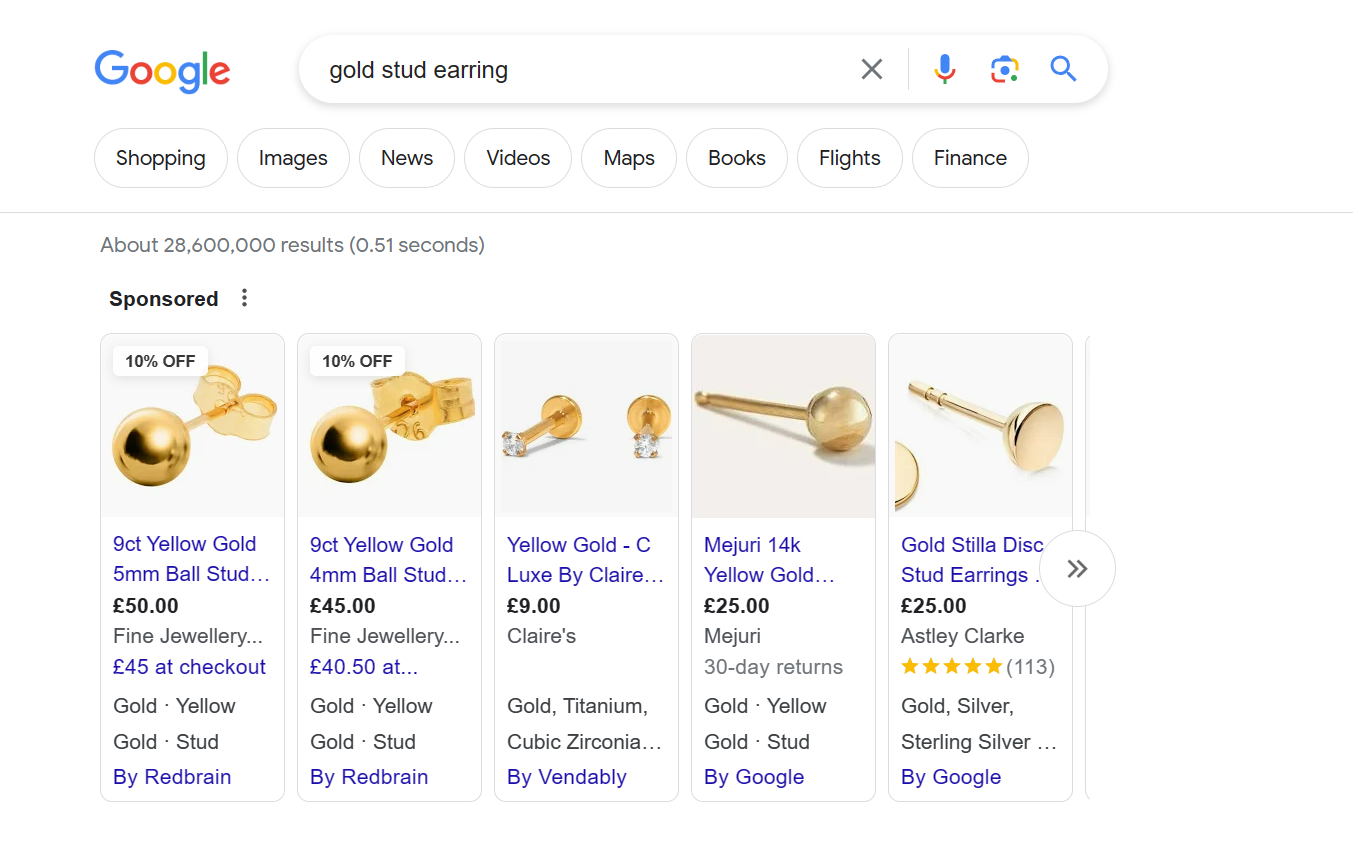
Google Shopping lets sellers prominently showcase their products at the top of Google’s results page, increasing visibility and attracting more potential customers without them having to scroll through the results page to find your website.
2. Provides trust signals
Having your products displayed prominently on Google’s results page alongside other top brands can serve as a trust signal that your brand and products are high-quality and trustworthy. Remember, not all brands make it onto Google Shopping, which can help set you apart from the competition.
3. Visual appeal
Having high-quality product images displayed on Google Shopping catches the attention of buyers, making it easier to showcase the unique features and visual appeal of your product range. In fact, the Google Shopping tab was created with the viewer in mind, with each shopping ad consisting of a product image, price, ratings and the name of the merchant. It’s a similar experience to browsing through the pages of a real catalogue.
4. Targeted advertising
With Google's powerful targeting capabilities, sellers can reach a highly relevant audience who are actively searching for products similar to what they offer. This targeted advertising approach ensures that sellers can connect with potential customers that have shown buying intent.
5. Streamlined shopping experience
Buyers can quickly compare prices, view product details and read reviews directly within the search results page, streamlining the purchasing process. For the buyer, this streamlined shopping experience eliminates the need to visit multiple websites, saving time and effort in finding the right product at the best price.
Google Shopping cons
While the pros of Google Shopping far outweigh the cons, here a few things worth considering:
1. Cost
Running Google Shopping campaigns can be expensive, especially for highly competitive industries, as sellers need to bid for ad placements and pay for each click. But with the right bidding strategy, it’s certainly possible to see good results without breaking the bank.
2. Performance fluctuations
The performance of Google Shopping ads can vary depending on various factors such as product competitiveness, ad optimisation and budget allocation. You’ll need to keep an eye on things to ensure optimum performance over time.
3. Limited control over search results
Google determines which products appear on the search results page, and sellers have limited control over the specific placement of their ads. This is because Google's algorithms consider a variety of factors, such as relevance, bid amount and user behaviour to determine the most relevant and engaging ads to display to users.
Despite the potential cons, the benefits of using Google Shopping are clear, making it a valuable tool for ecommerce businesses. In the following sections, we'll delve into the details of setting up and optimising your Google Shopping campaign to maximise your results.
How do I set up a Google Shopping campaign?
Before setting up your Google Shopping campaign, you’ll need an ecommerce website with your products on it.
These days, most merchants opt for a dedicated ecommerce platform like ShopWired to build their website from scratch. Not only does an ecommerce platform provide a user-friendly approach to website building, many of them, including ShopWired, offer dedicated Google Shopping apps to give you greater control over your product feed (more on that later).
Using ShopWired as an example, let’s explore how you can set up your own Google Shopping campaign to maximise your brand’s visibility and boost sales.
Step 1- Create a Google Merchant Center account
To run a Google Shopping campaign, the first thing you’ll need to do is create a Google Merchant Center account.
Google Merchant Center is a platform that lets online retailers upload and manage their product data. You'll need a Merchant Center account in order to have your products display on Google Shopping and reach potential customers searching for related items.
Once you’ve signed up, you’ll need to enter some initial basic information and read through Google’s terms and conditions. You’ll also need to insert and verify your website’s URL before you can start shipping any products.
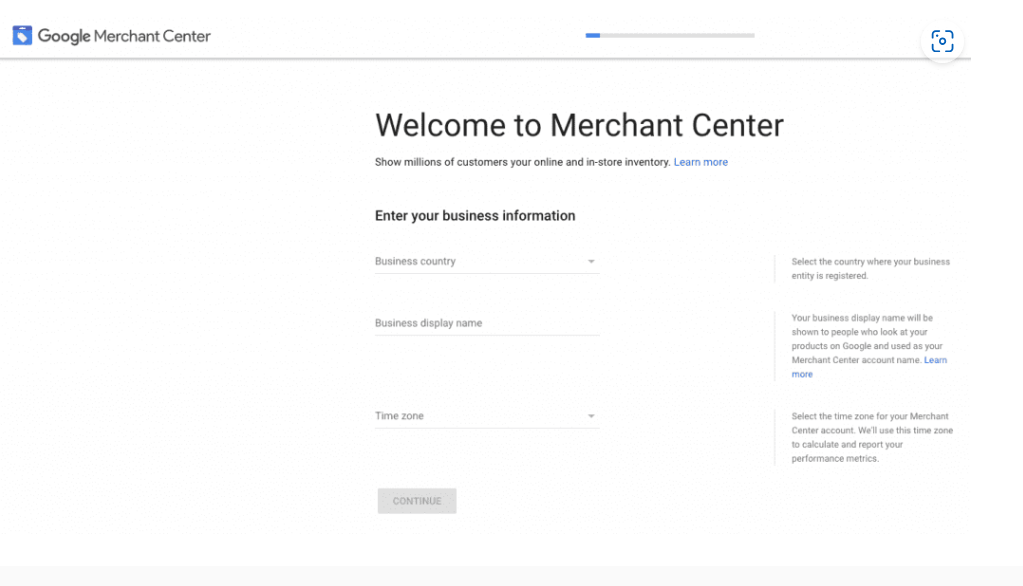
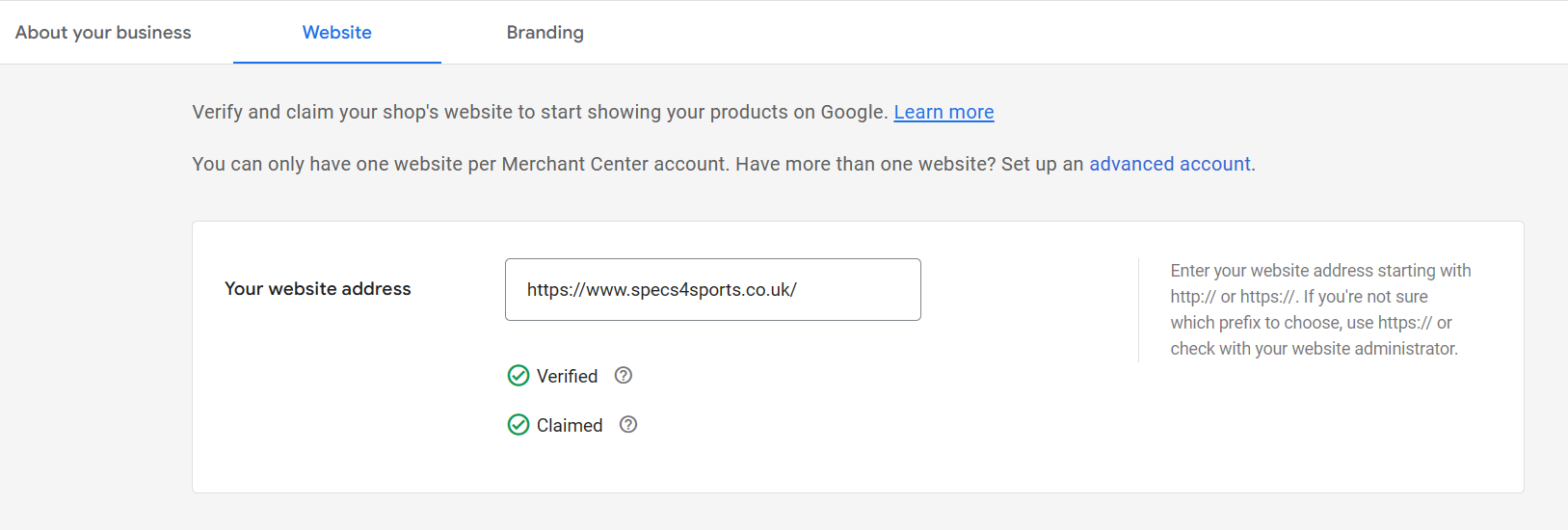
Setting up a Google Merchant Center account is straightforward, that’s because the platform builds an onboarding experience tailored specifically to your account. You’ll be shown what to do next and you’ll be able to see the tasks you’ve already completed.
You can read Google’s help guide for setting up Google Merchant Center here.
Step 2- Connect Google Merchant Center to your ecommerce website
Once your Google Merchant Center account is set up, it’s time to connect it to your ecommerce store.
Now, you can manually upload your inventory directly into Google Merchant Center using a spreadsheet, but that sounds like far too much effort! Most top ecommerce platforms now have dedicated apps that let you automatically sync your inventory with your Google Merchant Center account. For example, ShopWired’s new Google Shopping app syncs your online store with Merchant Center using a completely automated integration. Not only this, the product data is continuously synced automatically at timed intervals to ensure your product listings are always up to date.
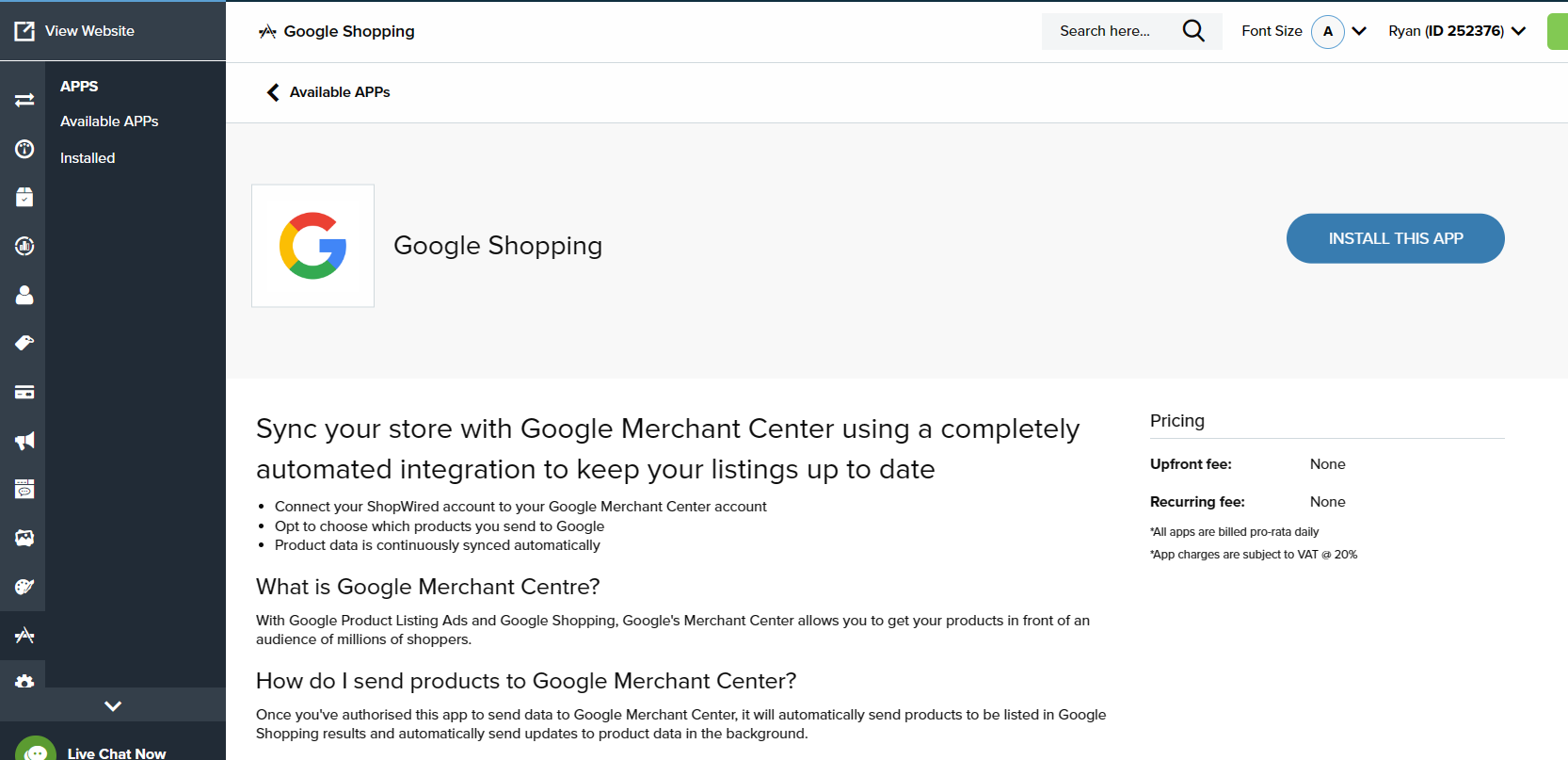
For ShopWired users, simply head to the Available Apps section of your ShopWired account and install the Google Shopping app. When you click install, you’ll be shown a list of permissions that you’ll be giving to Google. Once you’ve accepted these and completed the installation, you can connect the app to your Google Merchant Center account.

Step 3- Setting up the Google Shopping app
Step 4- Manage which products to upload to Google Merchant Center
Step 5- Make sure your products have been approved by Google and check for errors/disapproved products
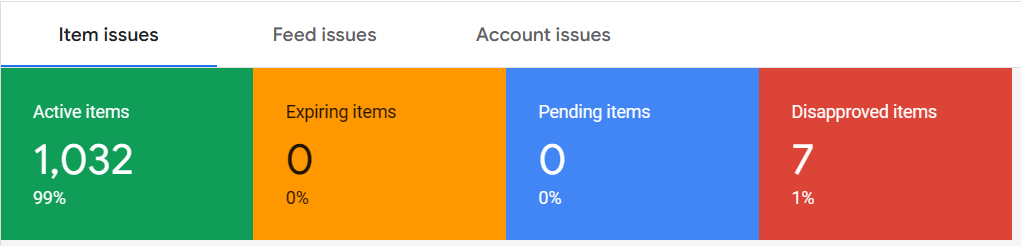
Before your products can be displayed on Google Shopping, they’ll need to be approved. This process can take up to 5 days. Once you’ve first uploaded your products, they’ll be labelled as ‘Pending.’ Once Google has processed your products, the pending status will change to ‘Approved’ and your products will now display on Google Shopping.
Sometimes, you may end up with some disapproved products. This can be for a number of reasons, including:
- Violation of Google's policies and guidelines
- Missing or incorrect product data
- Insufficient product information or missing required attributes
- Inadequate product images or improper image quality
- Non-compliance with specific category requirements
- Inaccurate pricing or misleading information
It's important to regularly check for any disapproved products in your Google Merchant Center account and address the issues to ensure all your products are eligible for display on Google Shopping. You can easily find any disapproved products and the reason why by going to the Diagnostics tab in the Products tab on Google Merchant Center. Usually the fix is simple and the product will be approved after the next sync.
Step 6- Create your first Google Shopping campaign
So far, we’ve focused on setting up a Google Merchant Center account to manage your product data and feed. Now, it's time to create your first Google Shopping campaign.
To set up a Google Shopping campaign, you’ll need a Google Ads account. You can sign up for a Google Ads account here.
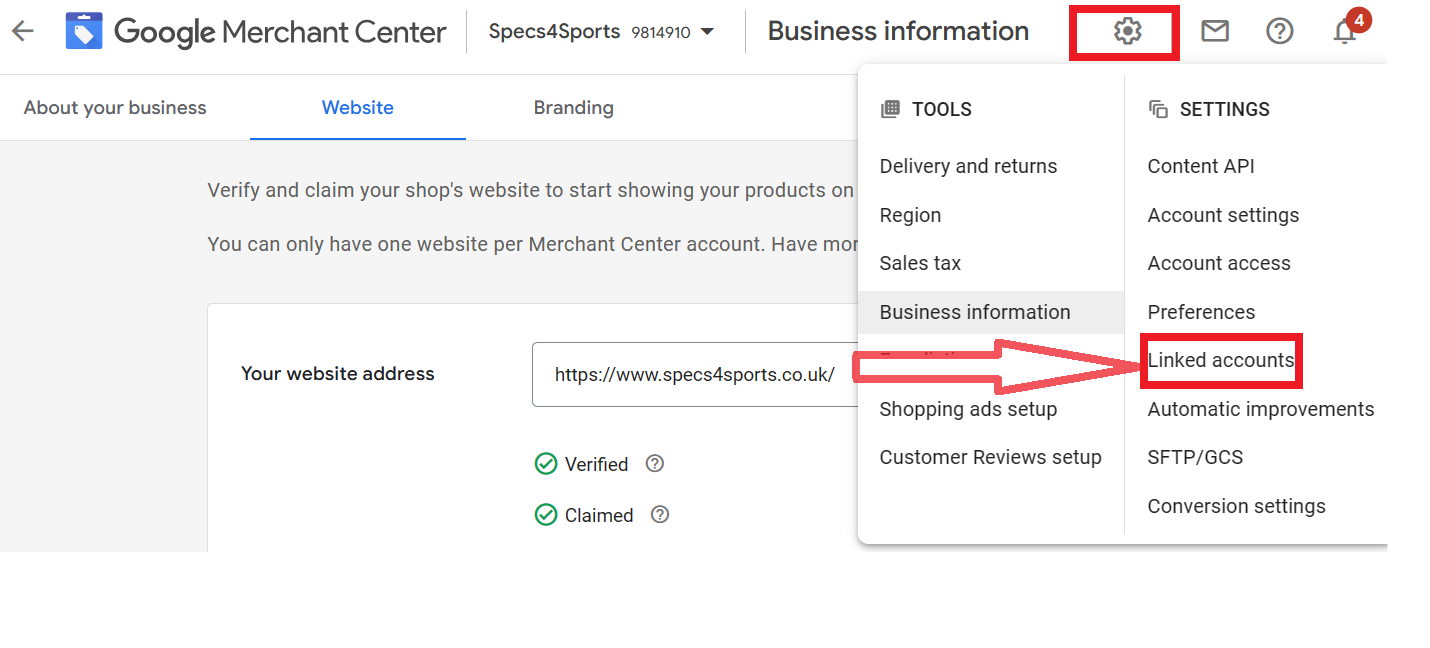
Once you’ve set up your Ads account, you’ll need to link it to your Google Merchant Center account so that you can run your first Shopping campaign. Linking the two accounts is easy- in Google Merchant Center, simply select the settings icon in the top bar, and then select Linked Accounts from the dropdown menu.
For more guidance, check this guide from Google on linking your accounts.
Once your Google Ads and Google Merchant Center accounts are linked, you’re ready to set up your first Shopping campaign.
You can set up a campaign by following these steps in Google Ads:
- Sign in to Google Ads
- Click Campaigns
- Click the plus ‘+’ button and then New Campaign
- Select Shopping for the type of campaign
- Click Next
- Choose a campaign name
When you come to set up a new Shopping campaign, there are two types of campaign you can create: Standard Shopping or Smart Shopping.
Standard Shopping campaigns are what most people think of when they hear "Google Shopping." They allow you to create product listing ads that appear in Google search results and on the Google Shopping tab. You have full control over your bidding strategy and can set individual bids for each product or product group.
Smart Shopping campaigns, on the other hand, use machine learning to automate bidding and ad placement. They can also include additional ad formats, like remarketing ads and display ads, which can appear across Google's network of partner sites. Smart Shopping campaigns require less ongoing management than Standard Shopping campaigns, but they also offer less control and transparency.
Choose the type of campaign you want to create, and then proceed with the following steps:
1. Set your budget
This is the maximum amount you're willing to spend on your campaign each day. Google Ads will automatically adjust your bids to try to get the most clicks or conversions for your budget.
2. Choose your bidding strategy
If you're creating a Standard Shopping campaign, you can choose a manual bidding strategy, where you set your own bids, or an automated strategy, where Google sets your bids for you based on your budget and goals. If you're creating a Smart Shopping campaign, your bidding strategy will be automated.
3. Define your target audience
You can choose to show your ads to everyone, or you can target specific demographics, locations, or audiences based on their interests or shopping behaviour.
4. Set up ad groups and product groups
Ad groups contain one or more product groups, and each product group contains one or more products. You can set different bids for each product group, allowing you to allocate your budget towards the products that are most likely to drive sales.
5. Review your campaign settings and then click Save and continue.
Congratulations, you've just set up your first Google Shopping campaign! Monitor your campaign's performance regularly to see how it's doing and make any necessary adjustments. Remember, digital marketing is always an ongoing process of testing, learning and iterating.
Step 7- Ensure your product feed is optimised
A Shopping campaign is different to traditional text ads in that you’re not bidding on keywords. Instead, as we’ve already discussed, your product feed contains all the necessary information that Google uses to match your products with relevant user searches and display them as Shopping ads, which is why it’s imperative that your product feed is well-optimised.
Let’s now go through some of the most important aspects of your product feed and how to optimise it for success.
Product title
Your product titles should be concise, descriptive and include relevant keywords. A well-crafted product title helps users understand what your product is, and to let Google know when to show your ad to people who are searching for that particular product.
Top tip- If you sell variations of a product such as different colours and sizes, it can be useful to include these in your product title. That’s because if someone searches for a ‘XL Blue Shirt’ they’re showing buyer intent and could be more likely to make a purchase.
Product descriptions
Product descriptions should be rich in detail, including the product's features, benefits and any unique selling points. They should also incorporate relevant keywords, as Google uses this information to understand the product and match it with user queries. Make sure the descriptions are clear, well-written and easy to understand to encourage potential customers to make a purchase.
Top tip- Avoid generic descriptions and make sure to differentiate your product from others. This is a great opportunity to highlight what makes your product unique and desirable.
Images
Product images play a crucial role in your product feed as they are the first impression customers get of your product. High-quality, clear and accurate images can significantly influence a customer's decision to click on your product.
Top tip- Ensure your images accurately represent the product you're selling. Include multiple angles and close-ups if possible. Images should be well-lit and set against a clean, neutral background to draw attention to the product.
Google Product Category
The Google Product Category is a crucial aspect of your product feed, as it classifies your product into a specific category, helping Google to understand what you're selling. It's important to select the most accurate and specific category for each product to ensure that your ads reach the most relevant audience.
Top tip - Google provides a product taxonomy that you can use as a guide to find the best category for your product. Be as precise as you can to help Google better match your products with user searches.
Product type
Product type is a key attribute that you can use to offer more specific information about your product, beyond what's available in the predefined Google product categories. By accurately defining your product type, you can help Google better understand your product and more effectively match it to relevant user searches.
Top tip - product type can be as detailed as you like and match your website's categorisation. The more specific you are, the better Google can target your products to the right users.
Price
The price field in your product feed is arguably the most critical component as it directly impacts a customer's decision to click on your ad. Ensure that your product's price is accurate and competitive, as Google will display this information prominently in your Shopping ad.
Top tip - Regularly update your product feed to reflect any changes in price. This is particularly important during sales or discount periods, as an accurate price can increase the likelihood of a customer choosing your product over others.
Shipping Information
Accurate shipping information in your product feed is crucial and could be the difference between a prospect choosing you or one of your competitors. Include shipping costs, delivery times and any special conditions to help customers make informed decisions.
Top tip - Clearly communicate shipping policies, offer competitive rates, and provide estimated delivery times. Transparent shipping information enhances customer satisfaction and boosts conversions.
Reviews and Ratings
Reviews and ratings play a vital role in building trust and credibility for your products. Positive reviews and high ratings can significantly impact a customer's decision to purchase. Encourage customers to leave reviews and showcase positive feedback to enhance your product's visibility and reputation.
Top tip - Implement a review collection strategy, engage with customer feedback and display reviews prominently on your product pages to build trust and increase the likelihood of conversions.
Sales Tax
Understanding and correctly applying sales tax regulations is essential for compliance. Ensure that you accurately include sales tax information in your product feed to provide transparency and avoid any potential legal issues.
Top tip - Research and stay updated on sales tax requirements in the regions where you operate. Consult with tax professionals to ensure proper compliance and avoid any penalties.
Availability
Accurate availability information is important for managing customer expectations and preventing dissatisfaction. Regularly update your product feed to reflect real-time stock availability and avoid advertising products that are out of stock.
Top tip - ShopWired’s Google Shopping app will automatically sync your product feed with your actual stock levels. This helps ensure that customers only see products that are currently available for purchase.
Condition
Clearly indicating the condition of your products in the product feed is crucial for transparency and managing customer expectations. Specify whether your products are new, used, refurbished, or in any other condition category applicable to your business.
Top tip - Provide detailed and accurate information about the condition of your products. Include any relevant details or disclaimers to set the right expectations for customers.
Brand
Including the brand name in your product feed is essential for brand recognition and searchability. Make sure to accurately specify the brand of each product to help users find and identify your products easily.
Top tip - If you’re selling your own branded products, consistent and accurate brand information enhances your brand's visibility and credibility.
Apparel Categories
If you sell apparel products, properly categorising them in your product feed is crucial for effective targeting and matching with user searches. Select the appropriate apparel categories to ensure that your products reach the right audience. Apparel categories include:
- Gender: male, female or unisex
- Age group: newborn, infant, toddler, kids, adult
- Size: the size of the product
- Colour: the colour of the product
Top tip - Choose the most specific and relevant categories for each apparel product to optimise visibility and reach.
MPN/GTIN
Providing accurate Manufacturer Part Numbers (MPN) or Global Trade Item Numbers (GTIN) in your product feed helps Google identify and categorise your products correctly. These unique identifiers improve the accuracy of matching products with user queries.
Top tip - Ensure that your product feed includes the correct MPNs or GTINs for each product. Double-check the accuracy of these identifiers to avoid any confusion or misclassification of your products.
Start your new Google Shopping campaign today
Google Shopping presents a great opportunity to attract potential customers who are searching for products on Google that your online store sells. Hopefully, this guide has given you some key information for helping you get your first Shopping campaign set up and ready for success. We’ve covered:
- how to set up a Merchant Center account,
- how to set up a Google Ads account,
- how to link your accounts together,
- how to connect a Google Shopping campaign with your ecommerce store,
- how to optimise your product feed for success.
If you're using ShopWired to power your ecommerce store, you can leverage our Google Shopping app to simplify the process of managing and optimising your product feed, making it even easier to get started with your Google Shopping campaign.
Get started today and tap into the vast potential of Google Shopping!
Want to give ShopWired a try? Sign up to a free 14-day trial here.


 Ecommerce


