
Before you proceed:
The following article contains information that requires you to have some prior knowledge about coding in order to correctly implement the proposed change to your theme. If done incorrectly alterations made to your theme’s code can negatively impact your website causing visual and performance issues. Therefore, we strongly recommend that you only undertake this effort if you are completely confident that you know what you’re doing. If you have no coding experience at all, aren’t entirely comfortable following the instructions in this article or if you simply don’t understand the instructions then we recommend you instead contact us, and our coding team will complete the work for you for a set fee. |
By default, a parent category will display the subcategories assigned to it (provided they contain products and are active).
However, a customisation can be made to your theme's files to instead make a parent category page, when viewed on your theme, display the products belonging to the parent category's subcategories.
You'll need to use the page editor and edit the parent_category.twig file.
The code will look similar to the example below (the exact code will vary depending on the theme).
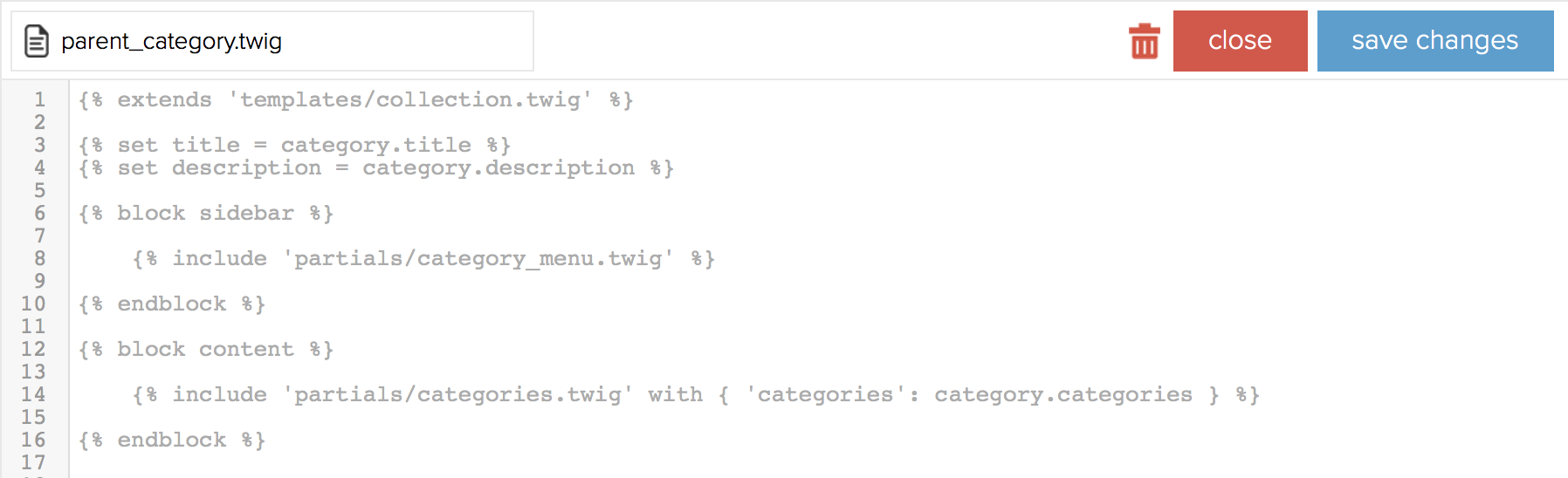
Within the {% block content %} you need to add in an IF statement that declares that if the page is being called to view products, then the product partial is used instead of the categories partial.
So,
{% block content %}
{% include 'partials/categories.twig' with { 'categories': category.categories } %}
{% endblock %} |
becomes...
{% block content %}
{% if products is defined %}
{% include 'partials/products.twig' %}
{% else %}
{% include 'partials/categories.twig' with { 'categories': category.categories } %}
{% endif %}
{% endblock %} |
You'll also need to include code that means that the sort by drop down (i.e. sort by price, alphabetically etc.) and pagination appears where appropriate.
The exact format for this code varies from theme to theme but in our example, at the top of parent_category.twig we need to include this code:
{% if products is defined %}
{% set show_filters = products|length > 0 %}
{% endif %} |
Like shown on the example below.
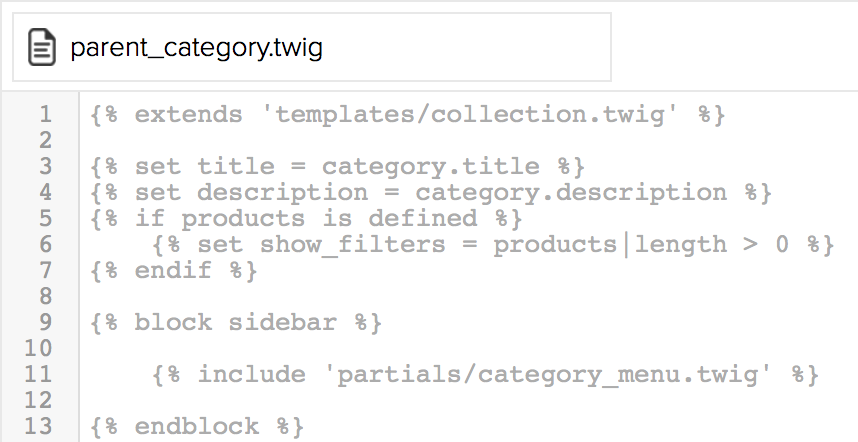
Save your changes when you're done.
Activating the feature
Even after the code described above has been added to your theme, viewing a parent category will still only display its subcategories.
In order to view the products, you'll need to add ?all=1 to the end of the URL of the parent category.
For example, www.yourdomainname.com/parent-category becomes www.yourdomainname.com/parent-category?all=1.
To activate this feature on all links to your parent categories, you'll need to edit the parts of the code that generate category links (i.e. the category header and side menus).
1. Open the header.twig file and locate the code that generates the category menu (usually towards the bottom of the file).
If you find code that looks like the below, skip to step 4.
| {{ shopwired.navigation_menu(global.categories, true, 'header-categories hidden visible-lg') }} |
If you can't see this code, you should see some code that starts with {% for category in global.categories %}
2. You'll need to append, onto the end of the {{ category.url }} variable, the code ?all. For example,
{% for category in global.categories %}
<a href="{{ category.url }}?all=1">
{{ category.title }}
</a>
{% if category.categories %}
...</span> |
3. You'll also need to locate the file that generates the category side menu, this is usually in the file partials/category_menu.twig. You'll need to do something similar to step (2) on that code too.
If you find code that looks like the below, skip to step 4.
| {{ shopwired.navigation_menu(global.categories) }} |
4. If you have performed steps (3) and (4) above then ignore this step.
Open the file macros/shopwired.twig, and locate the macro that generates the category menu, something like
{% macro navigation_menu(categories, show_children, class, children_class, link_class) %}
<ul class="{{ class }}">
{% for category in categories %}
<li class="{{ ((category.open ? 'open' : '') ~ ' ' ~ (category.id == global.category_id ? 'current' : ''))|trim }}">
<a href="{{ category.url }}" class="{{ link_class|default('link') }}">{{ category.title }}</a>
{% if show_children|default(true) and category.categories %}
{{ _self.navigation_menu(category.categories, false, children_class|default('drop-down')) }}
{% endif %}
</li>
{% endfor %}
</ul>
{% endmacro %} |
You need to append code to the end of the {{ category.url }} variable (but before the " mark) that appends ?all=1 to the category url if it is a parent category, i.e. by adding the code {{ category.categories ? '?all=1' : '' }}, as shown in the example below.
{% macro navigation_menu(categories, show_children, class, children_class, link_class) %}
<ul class="{{ class }}">
{% for category in categories %}
<li class="{{ ((category.open ? 'open' : '') ~ ' ' ~ (category.id == global.category_id ? 'current' : ''))|trim }}">
<a href="{{ category.url }}{{ category.categories ? '?all=1' : '' }}" class="{{ link_class|default('link') }}">{{ category.title }}</a>
{% if show_children|default(true) and category.categories %}
{{ _self.navigation_menu(category.categories, false, children_class|default('drop-down')) }}
{% endif %}
</li>
{% endfor %}
</ul>
{% endmacro %} |
Save your changes.
You should then test the customisation thoroughly to ensure it is working correctly.


 Ecommerce


